
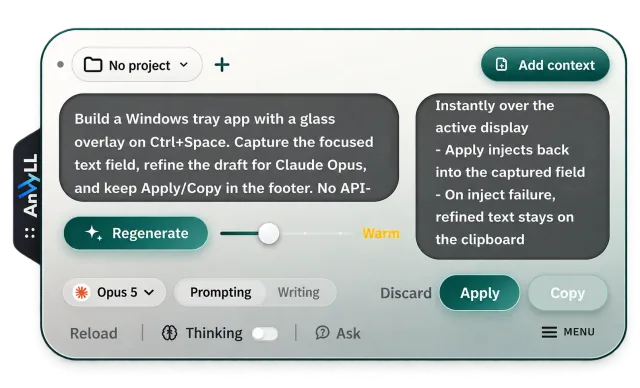









In the chat
A prompt, still in the composer.
This is a fictional chat app. The rough prompt sits in the box with the cursor still blinking, the way you would leave it. Anvyll is not open yet.
Windows prompt optimizer
Anvyll AI is a Windows prompt optimizer. Press CtrlSpace to bring your draft into Anvyll, refine it for your target model, and apply it back to your text field.
Not on this PC right now?
Better prompts. Same app. One hotkey.
Send to your PC Anvyll for Mac Anvyll for Linux Anvyll on your phone
We'll email you the Windows installer. Open it on your PC and you're set up in about a minute. Leave your email and we'll write once, when that changes. No newsletter.
Looking for a phone app? Anvyll works inside your PC apps.
I'm on Windows, download anyway
Anvyll is a Windows app that rewrites your prompt without leaving the program you were already in. Press Ctrl+Space: a tray overlay opens over your work and fills with the draft from the focused field. Pick a target model: that chooses the prompting methodology for the rewrite, not which company runs it. Claude gets XML tags, GPT gets numbered steps. Drafts and notes stay in a vault on your computer. When you press Generate, the prompt (and any context you attached) goes to the Anvyll service and comes back ready to put in the same field.
Use it alongside
Context awareness
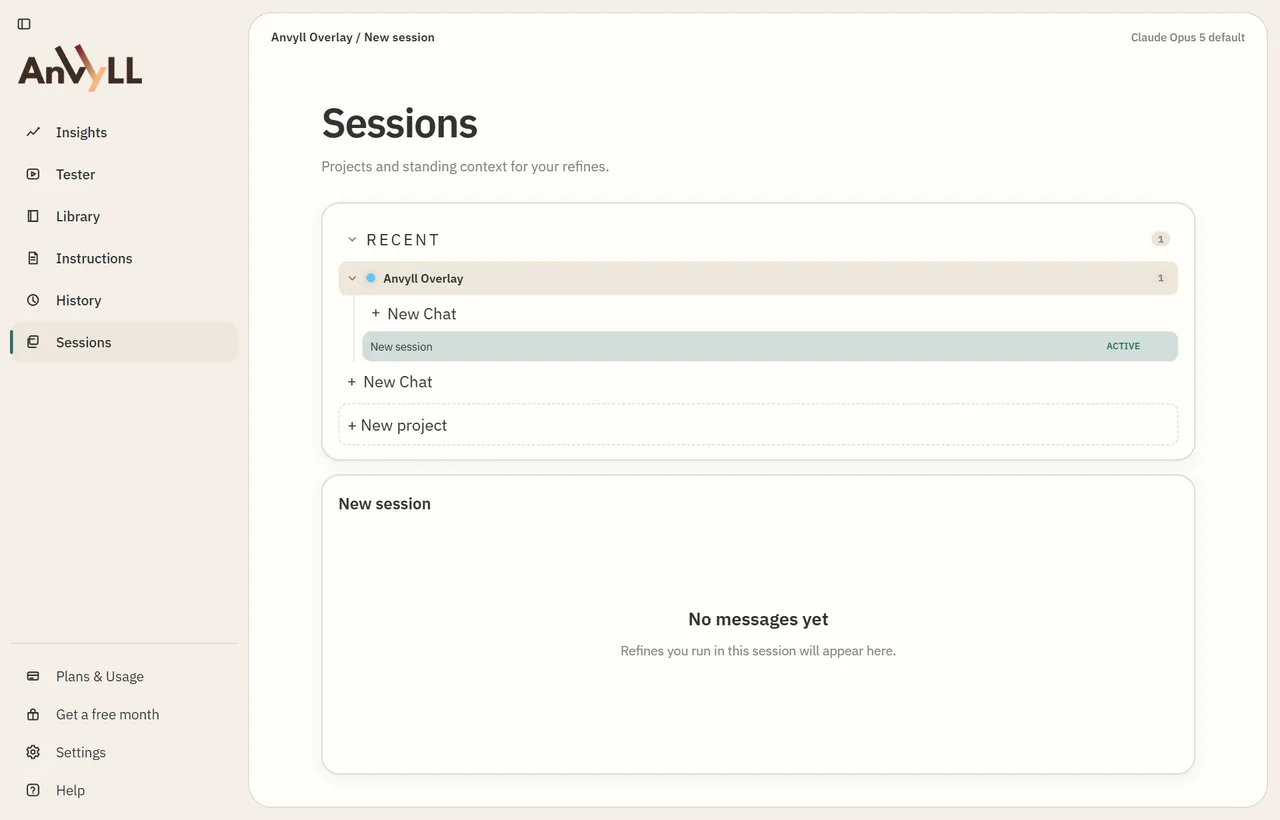
Session context is for what you are working on now. Project context is standing detail that follows a project between sessions. You choose which one when you import.
Pasting raw chat history is allowed. Pastes over about 4,000 characters are compacted before save, not silently truncated.
The overlay does not invent that material. Refine uses what you imported so the rewrite can stay grounded in your project.
How it works
01 10
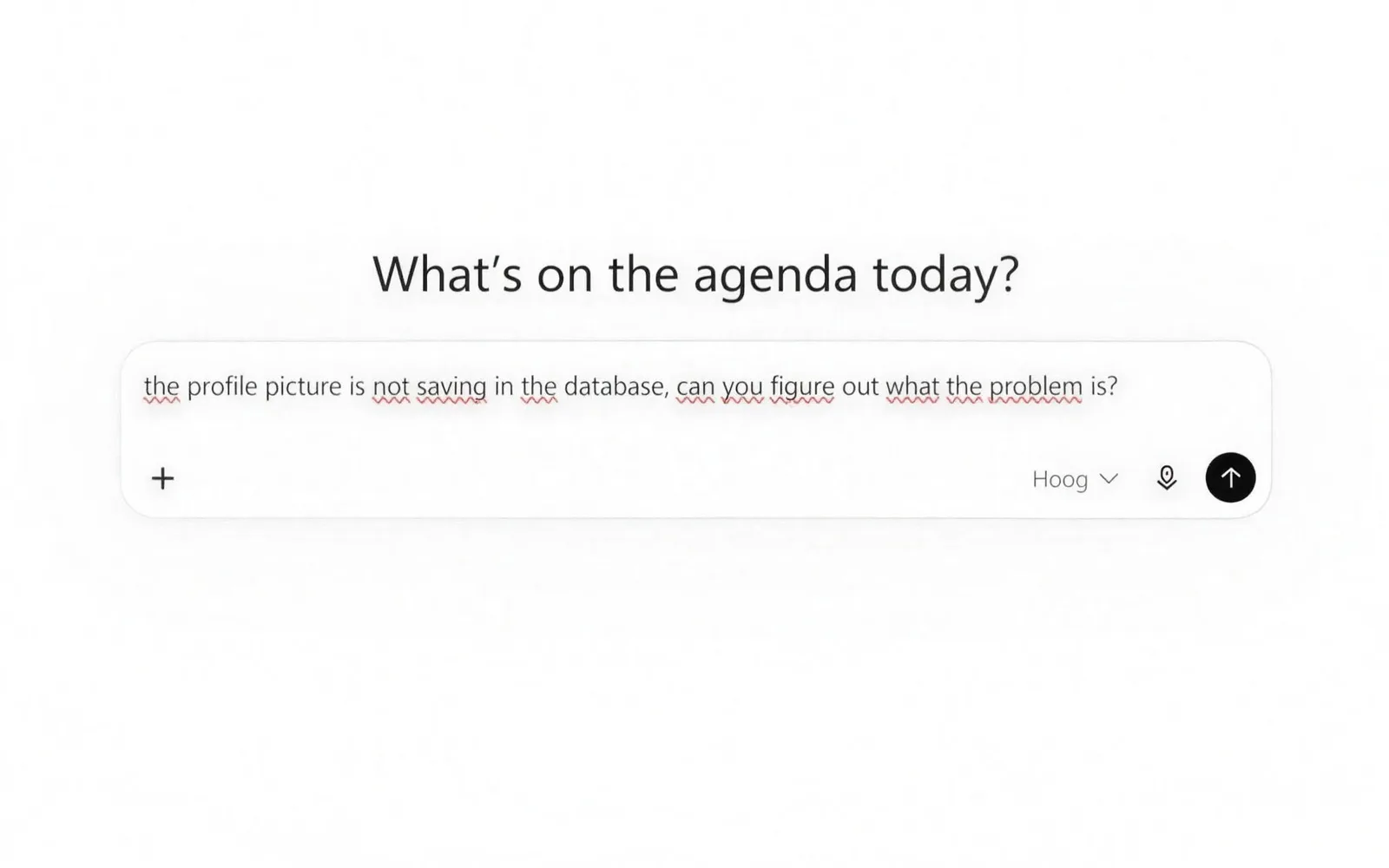
In the chat
This is a fictional chat app. The rough prompt sits in the box with the cursor still blinking, the way you would leave it. Anvyll is not open yet.
Ctrl+Space
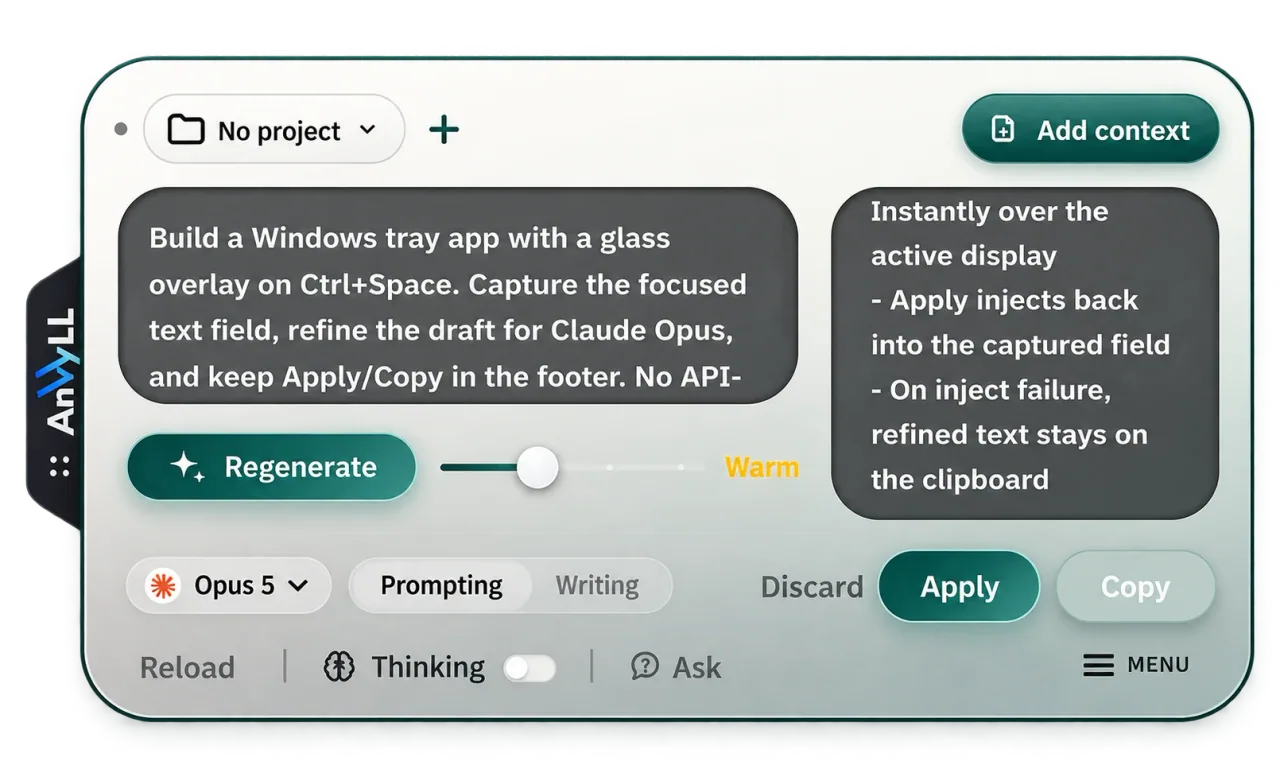
Press Ctrl+Space in the field you are writing in. The overlay opens on top of that window and takes the draft from it. You do not paste the prompt into a separate editor.
The draft
The field on the left is the prompt Anvyll captured from the composer. Edit it before you generate, or leave it as it is. The cursor in the chat stops, because the overlay now holds the draft.
Context
Add context brings in context from this chat, so the rewrite can stay grounded in it. The pill on the left opens your projects and chats. Session context is for this chat. Project context follows a project between chats.
Destination
Opus 5 is the target. That choice selects the prompting methodology, which is the shape of the rewrite. It does not choose which company runs the rewrite. Prompting and Writing switch the kind of text you are refining.
Generate
Generate sends this prompt to the Anvyll service and writes the result on the right. The slider sets the structure level. Warm is the second of four, from a tidied paragraph up to a full outline. More structure changes the shape. After the first run the button reads Regenerate.
The result
The refined prompt lands in the field on the right, as plain text. It stays editable. Apply and Copy use whatever you leave in that field.
Before you generate
Thinking lets the rewrite reason a little longer. Ask, when it is on, asks a few questions first and folds the answers into the rewrite. Reload only resets a stuck hotkey. It does not run the prompt again.
Put it back
Apply inserts the refined prompt into the field the draft came from. Copy is there when insertion is blocked. Discard drops this pass. Menu holds position, Settings and Studio. The dots on the left tab drag the overlay.
Back in the chat
The overlay closes. The same field now holds the rewrite, ready for you to send. Anvyll does not send it.
How it works
## Context

Kwaapo is an Expo/React Native app using Supabase Postgres/Auth/RLS for its backend and Cloudflare Workers/R2 for media storage. Users are currently unable to save or update their profile pictures in the database. The issue is specific to the persistence of profile pictures, and the root cause has not yet been identified. All analysis must adhere strictly to the existing Kwaapo stack and architecture.

## Task

Diagnose and explain the root cause of why profile pictures are not being saved or updated in the database in the Kwaapo app.

## Constraints

- Base your analysis strictly on the current Kwaapo stack: Expo/React Native, Supabase Postgres/Auth/RLS, and Cloudflare Workers/R2.
- Only use information relevant to the current implementation; do not introduce hypothetical changes or unrelated technologies.
- Use precise terminology and file names as established in the project and session context.

## Output format

Present your diagnosis and explanation in clear, concise paragraphs using plain language. Structure your response to first identify the likely failure mechanism, then explain how it prevents profile picture persistence.

## Success criteria

- The explanation accurately identifies the failure mechanism preventing profile picture persistence in the database.
- The analysis is grounded in the current Kwaapo stack and uses correct terminology.
- The reasoning is clear, specific, and actionable for further debugging or resolution.

Verify that your explanation meets all criteria before finishing.
01
Place your cursor in a text field and press Ctrl+Space. Anvyll opens over whatever you were doing and fills the draft from the field you were in.
Ctrl+Space · reassignable in Settings
02
Choose the model you are aiming at and how much structure to add, then press Generate. The result lands in an editable field, so you can adjust it before it goes anywhere.
5 primary targets · 4 structure levels
03
Choose Apply and the refined prompt is written back into the same field you captured from. It stays in the composer; Anvyll does not send it anywhere for you.
Apply to insert · Copy if insertion is blocked
If insertion is unavailable, use Copy.
Controls with a purpose
01
The target you pick selects which prompting methodology Anvyll applies: Anthropic's guidance for Claude, OpenAI's for GPT, and so on. It does not hand the rewrite to that provider: one rewrite model (OpenAI, run through the Anvyll service) does the work, and the guide decides the shape.
02
Cool through Max set how much scaffolding the rewrite adds, from a tidied paragraph to an explicit role, outline and output contract. Every level keeps the facts you supplied. More structure is a choice about shape, not a better score.
03
Session context applies to what you are working on right now. Project context is standing detail that follows a project between sessions. You choose the scope when you import it, and the overlay shows which ones were used.
04
Hold the same hotkey instead of tapping it and Anvyll listens, then pastes the transcript into the field you were in. It is another way to get text in; the refining path afterwards is unchanged.
Beyond the overlay
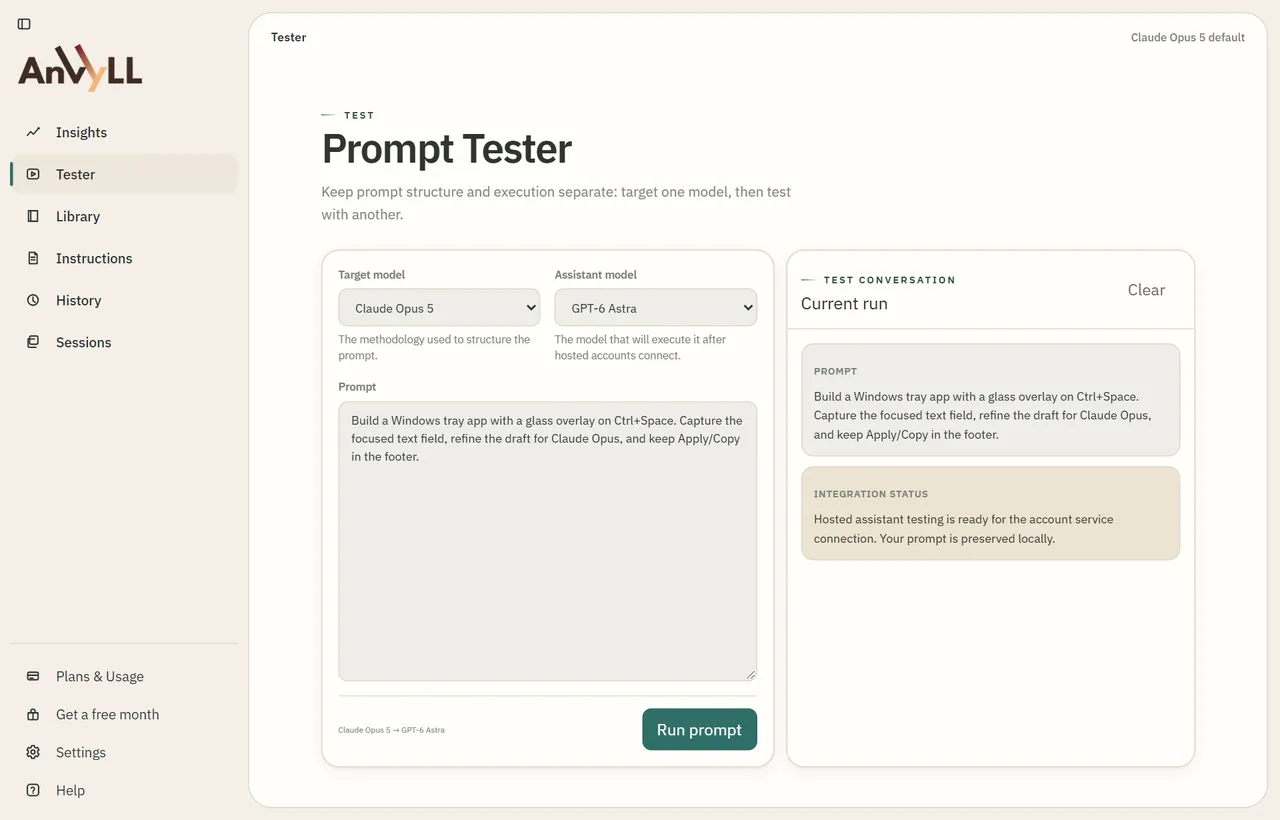
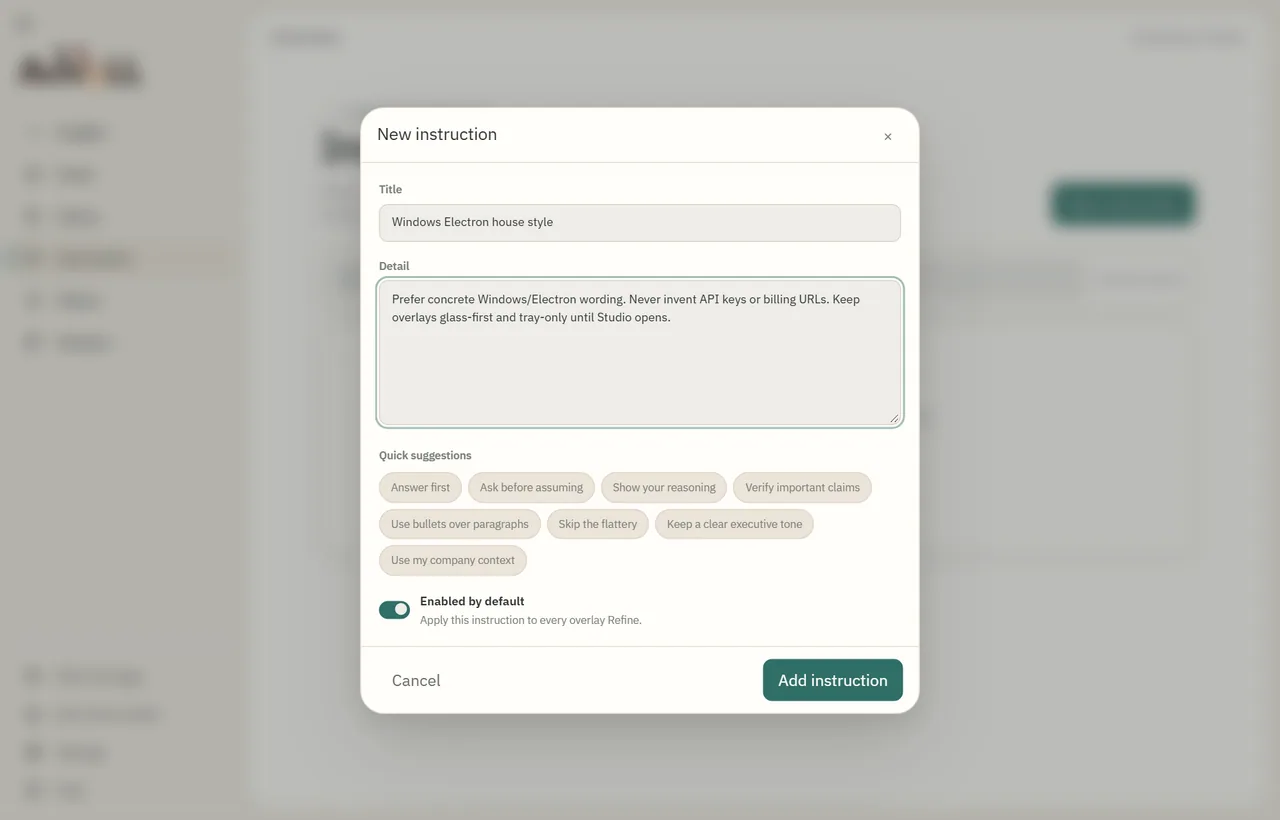
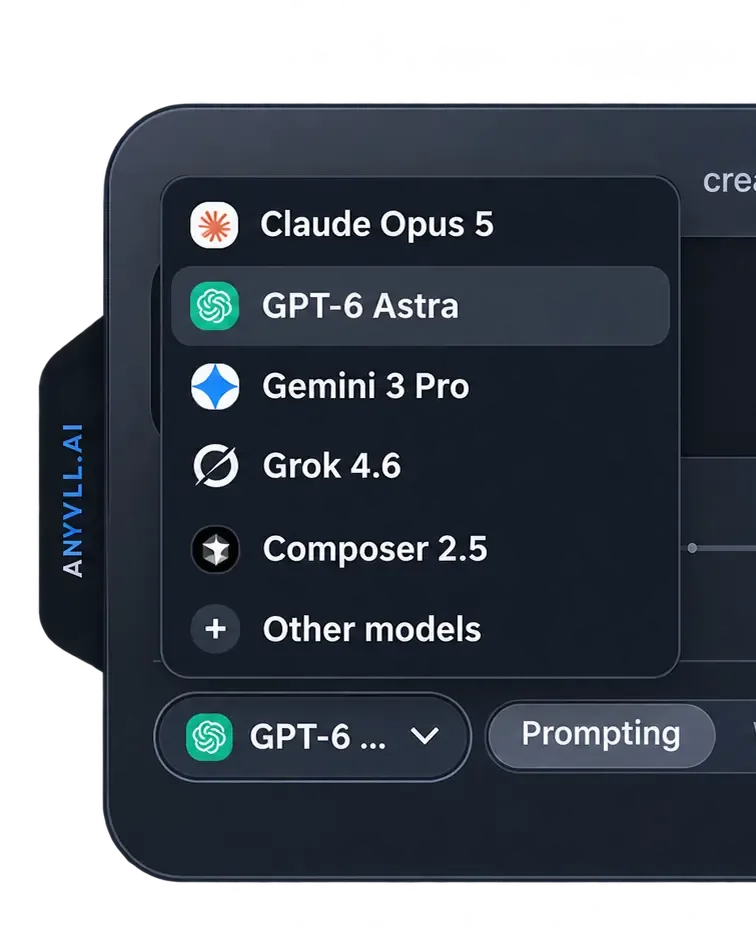
The overlay is the fast path. Open Studio from the tray to try a prompt on a second model, keep the ones that work, and set rules every refine follows.
Target one model for structure, run it on another, and read the result beside your draft.
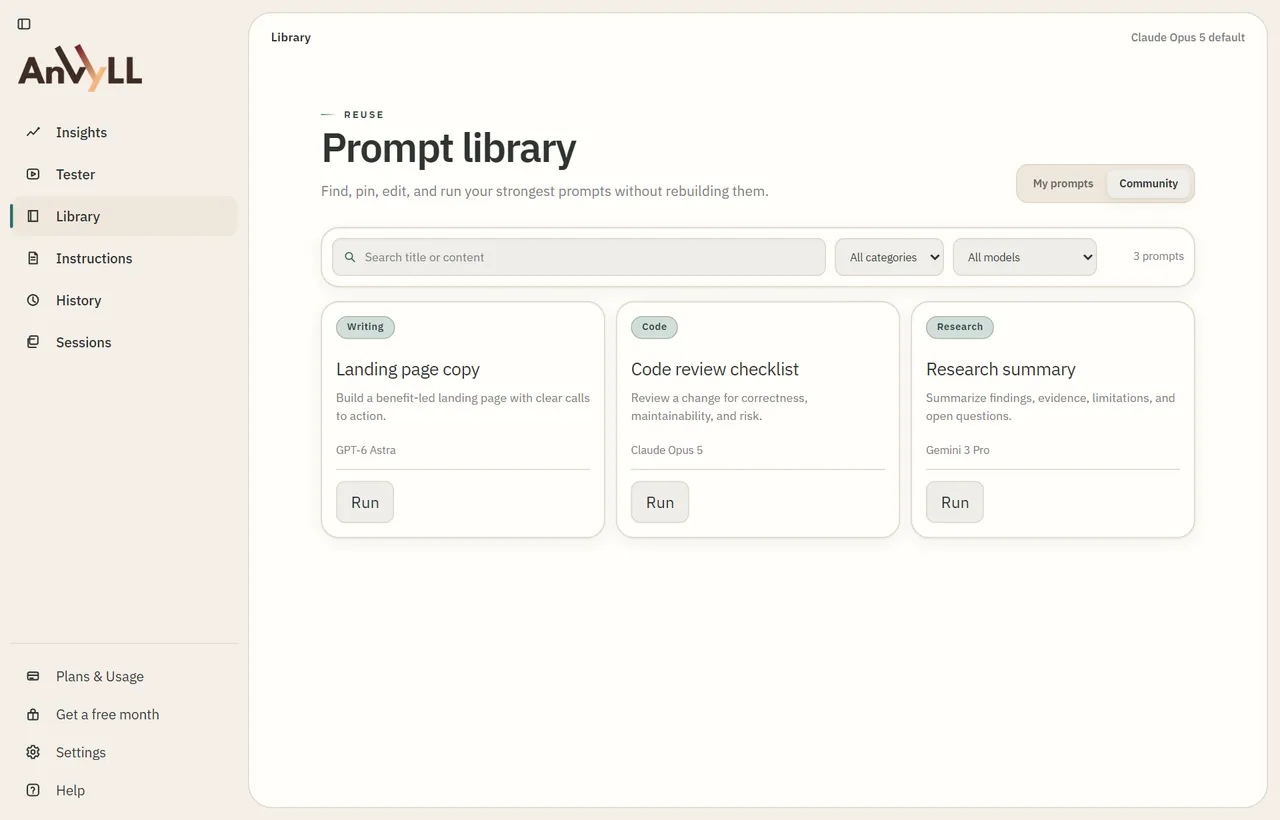
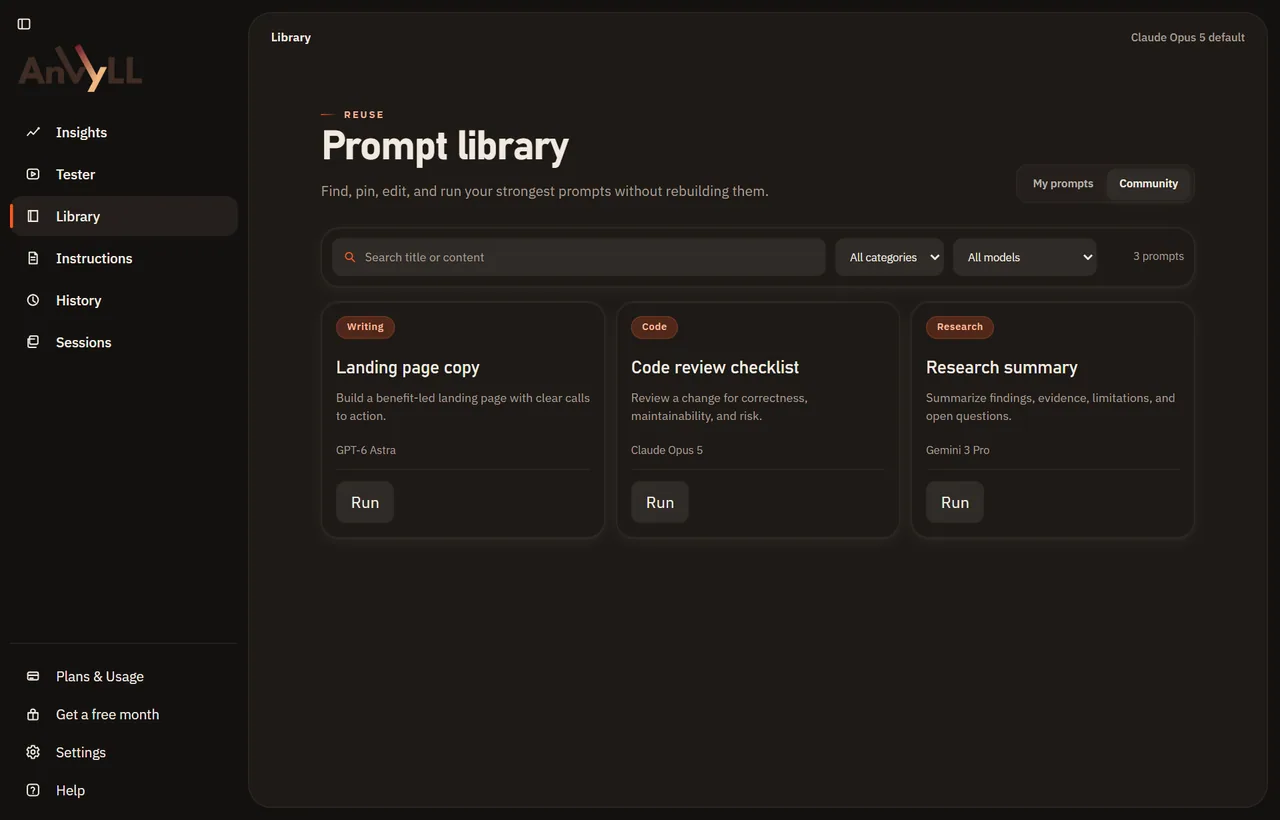
Find, pin and edit the prompts you reuse. Filter by category or model and run them without rebuilding.
Write house rules such as tone or what to avoid. They count as binding instructions on every refine.
Why it isn't just "make this better"
Anvyll ships a prompt pack per target model, each carrying that vendor's documented guidance. Pick the model you're aiming at and the structure changes with it; the facts do not.
Your input write a blog post announcing our windows app is moving from 1000 one-off credits to a flat 13.99 a month plan, about 600 words, its for people already using it, dont be hypey
<role>
  You are writing for an audience that already uses
  the product.
</role>

<task>
  Draft a ~600-word post announcing that the Windows
  app is moving from 1,000 one-off credits to a flat
  €13.99 per month.
</task>

<constraints>
  - Lead with what changes for existing users
  - Name both the old and the new pricing
  - No hype adjectives
</constraints>
Anthropic's guidance leans on explicit XML delimiters and a role set before the task, so the rewrite emits tagged blocks rather than headers.
# Audience
People already using the Windows app.

# Task
Write a ~600-word post announcing the pricing change.

# Steps
1. Open with what changes for existing users.
2. State the old pricing: 1,000 one-off credits.
3. State the new pricing: flat €13.99 per month.
4. Close with a single next action.

# Constraints
- No hype adjectives

# Output
Markdown, ~600 words.
OpenAI's guidance favours a flat instruction hierarchy with numbered steps and the output contract stated last.
**Persona**
Someone announcing a pricing change to an existing
user base.

**Output**
A ~600-word post. Name both prices. No hype
adjectives.

**Task**
Write the announcement.

**Context**
The product is a Windows app. Pricing moves from
1,000 one-off credits to a flat €13.99 per month.
The readers are already using it.
Google's Gemini 3 notes put the persona, the output rules, and other critical constraints first. A long document is the exception: the source comes first and the question last.
**Brief**
A ~600-word post announcing our pricing change.

**Who's reading**
People already using the Windows app.

**What changed**
1,000 one-off credits → a flat €13.99 per month.

**What matters**
- Say what changed, up front, without softening it
- Name both the old and the new pricing
- Take a position on why flat beats credits

**Avoid**
Hype adjectives.
Grok's pack keeps the brief conversational and explicitly licenses a point of view, which the model handles better than rigid scaffolding.
## Deliverable
A ~600-word markdown post.

## Task
Announce that the Windows app is moving from 1,000
one-off credits to a flat €13.99 per month.

## Content requirements
1. Open with the change as it affects existing users
2. Name the old pricing and the new pricing
3. Close with a single next action

## Audience
Existing users.

## Style
- No hype adjectives
Composer is a coding-surface model, so the pack front-loads the concrete deliverable before any prose direction.
Every AI has its own published prompting guide. Pick your target and Anvyll restructures the prompt to that model's guide: XML tags for Claude, numbered steps for GPT.
Make it yours
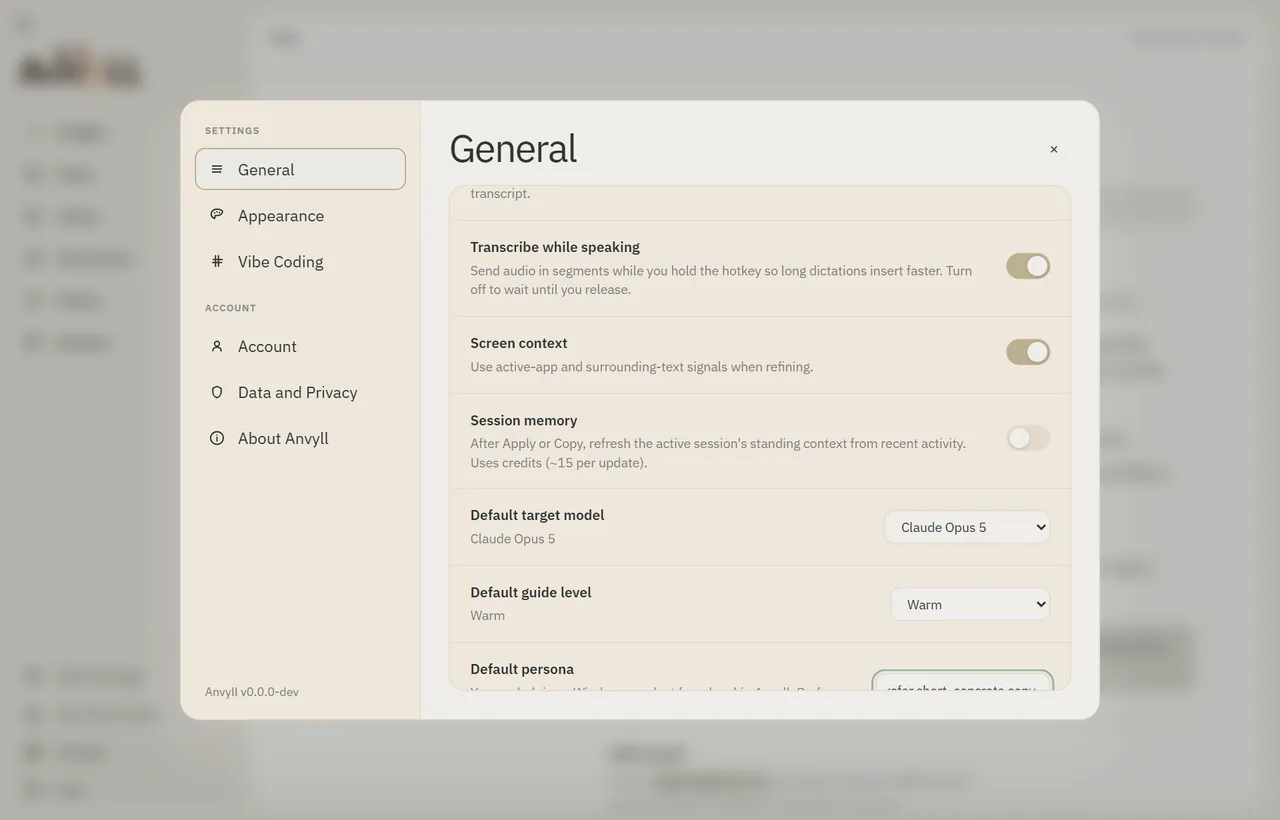
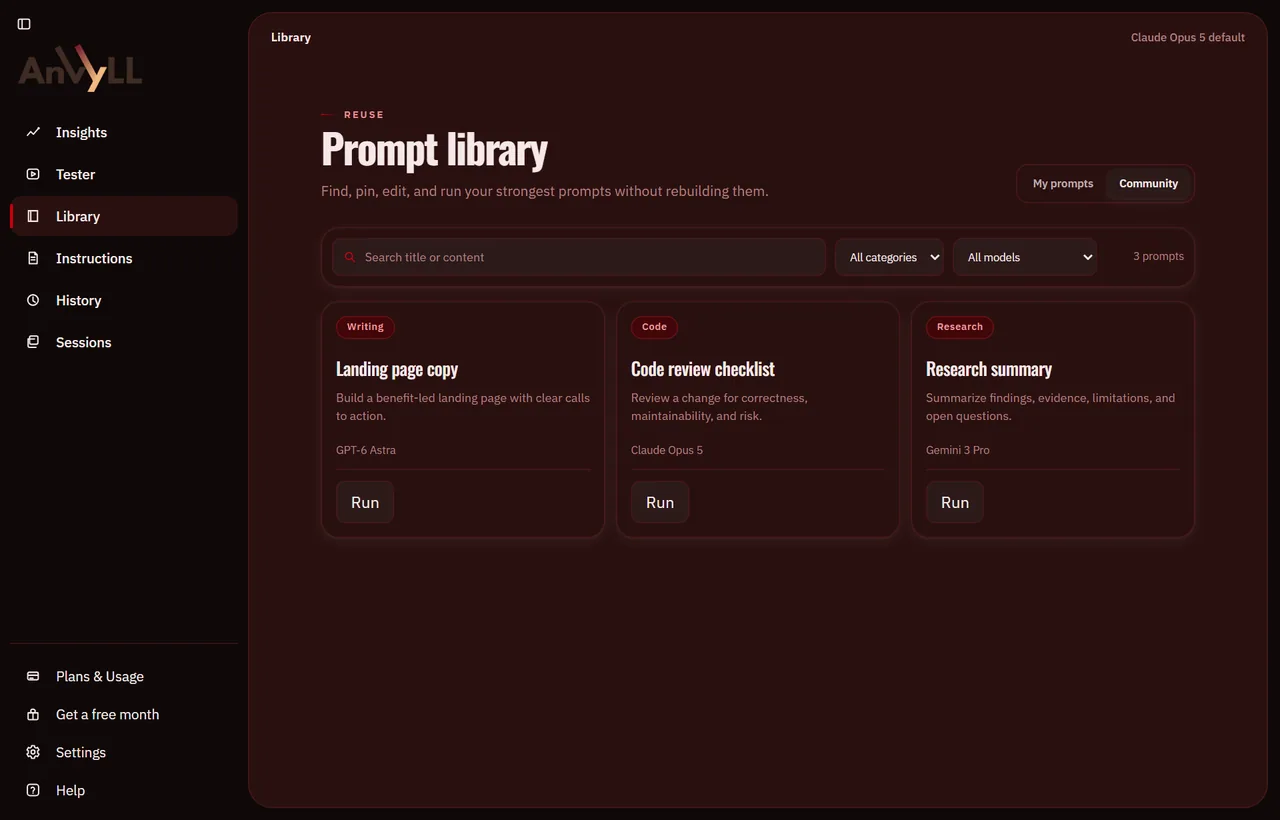
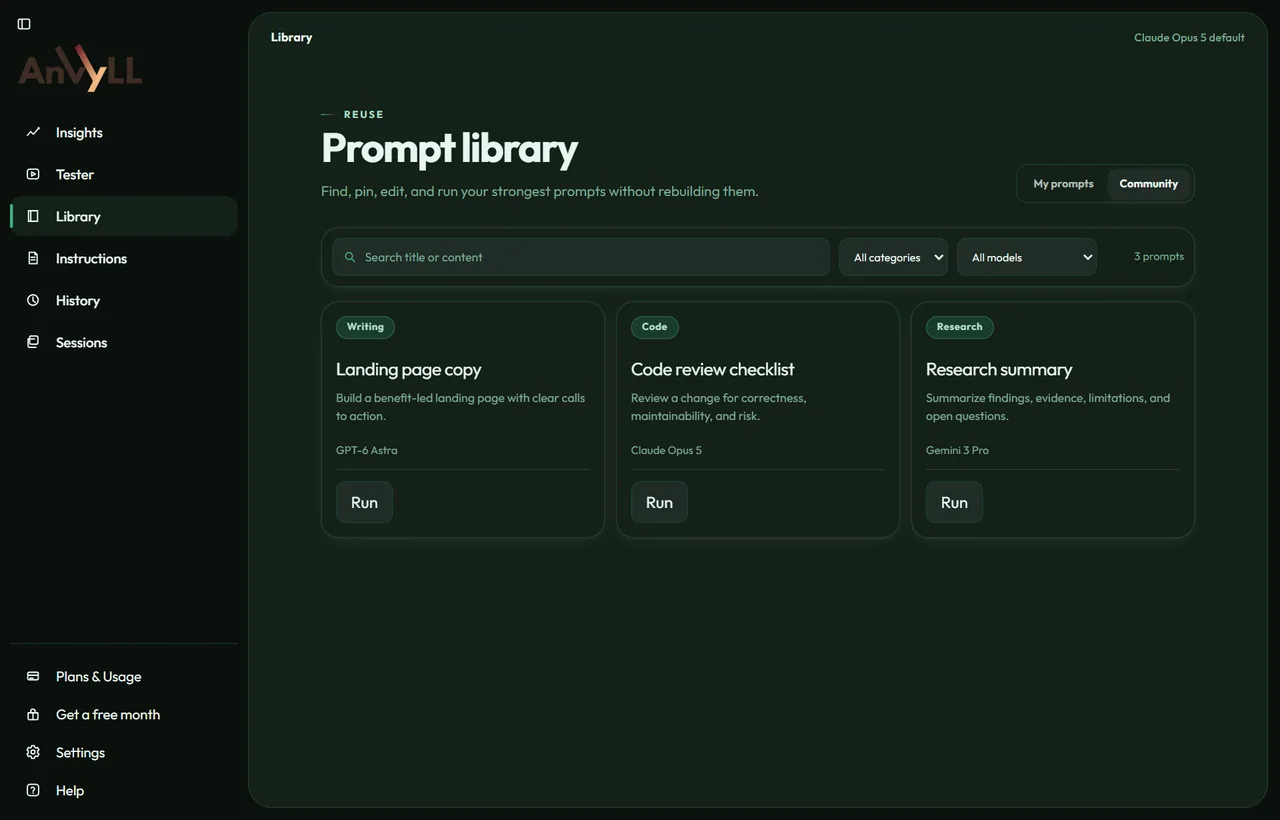
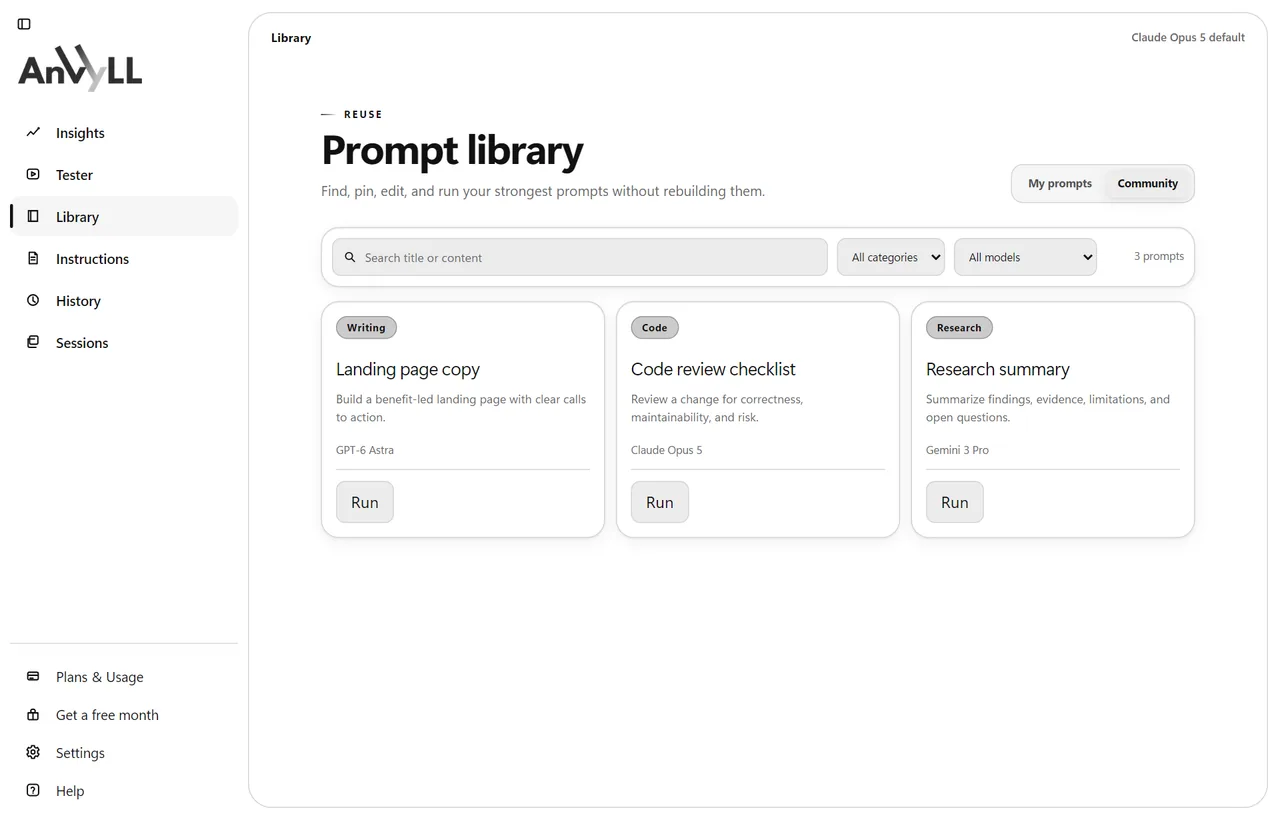
Studio, the overlay and onboarding share one appearance, from the cream and teal default to black and white.
Cream studio, teal accent. The default.
Brand heat on warm charcoal.
Industrial metal, cool silver polish.
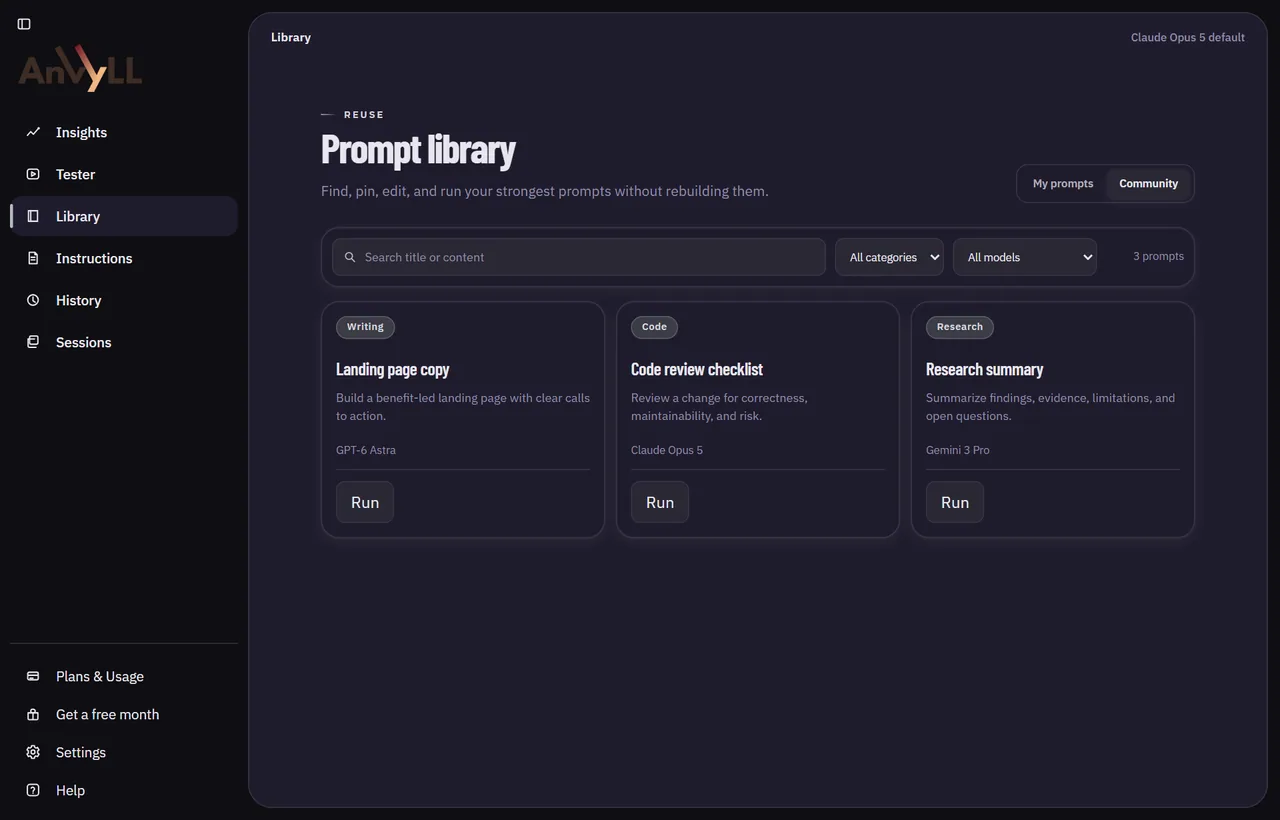
Molten core, radial heat bloom.
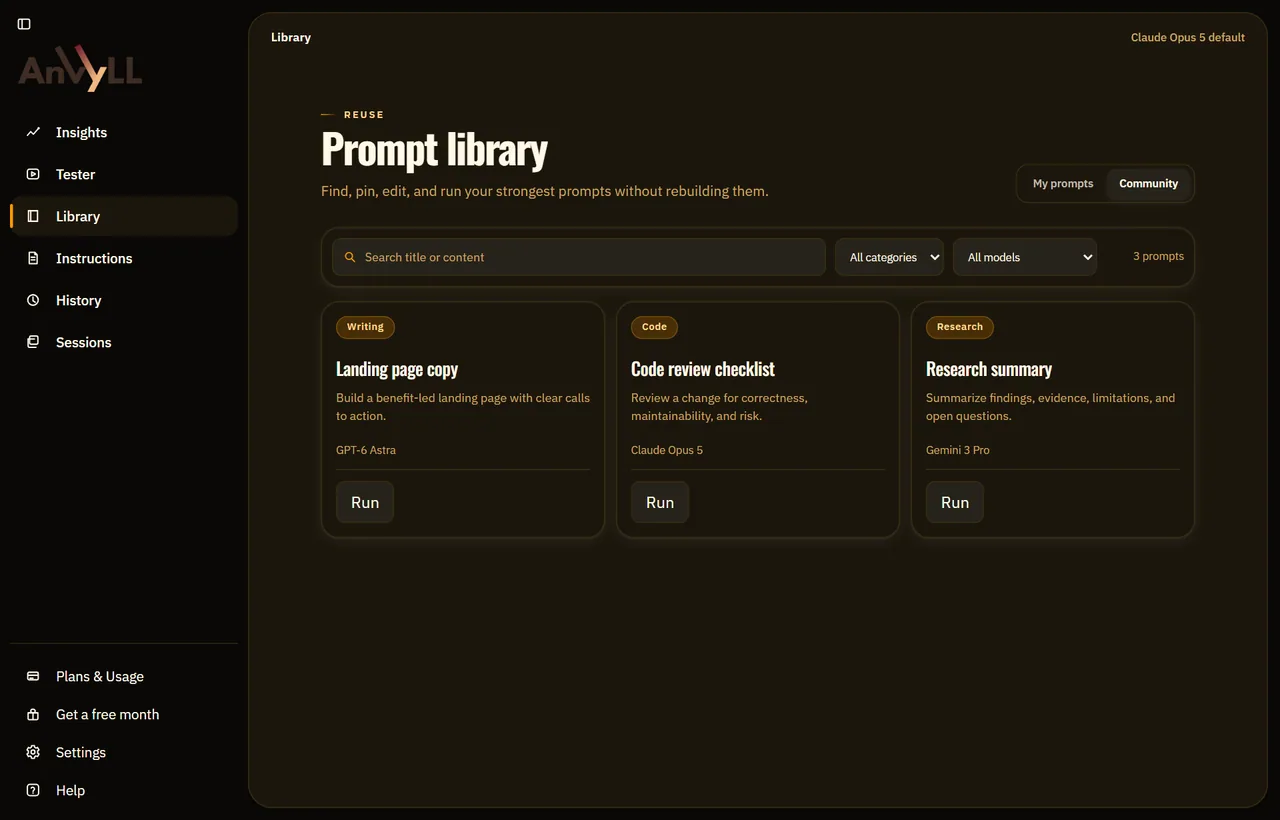
Unfired light studio, warm paper.
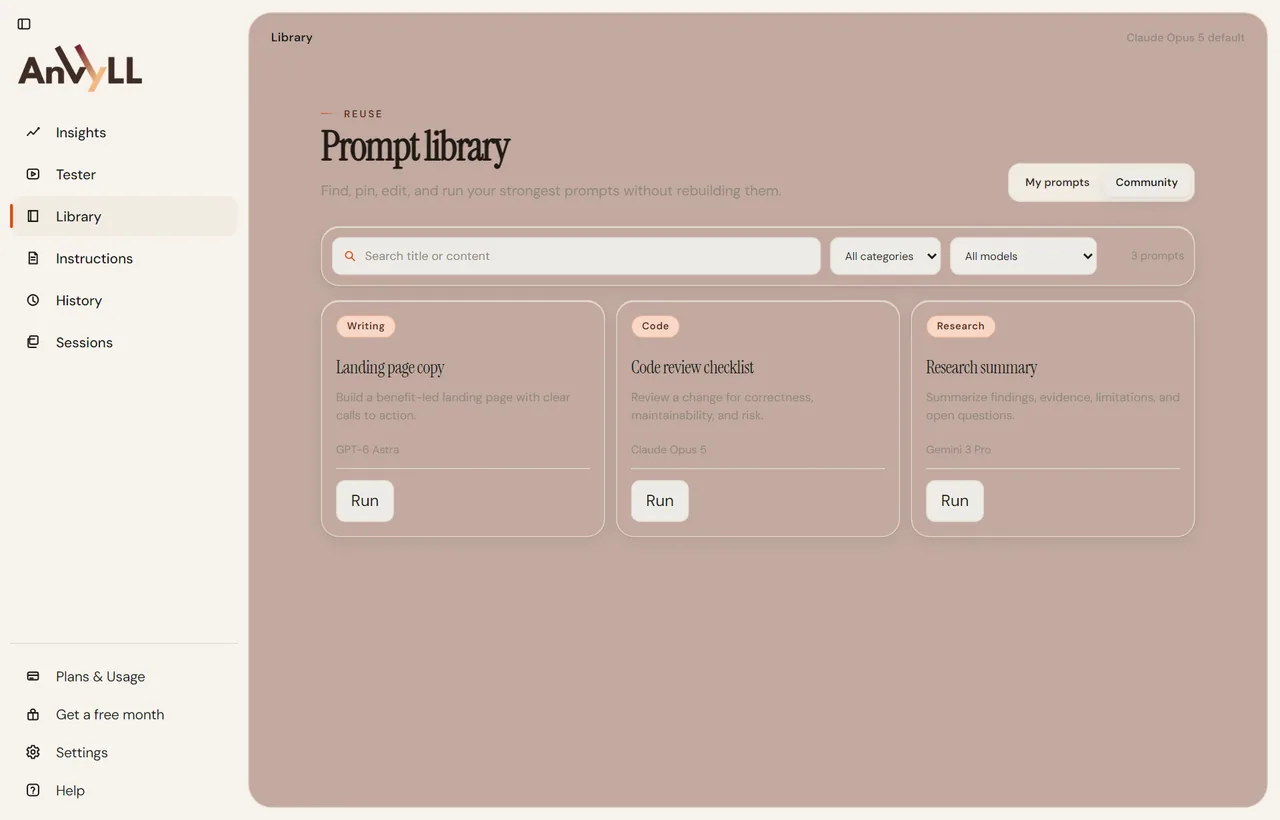
Quenched steel, blue slate.
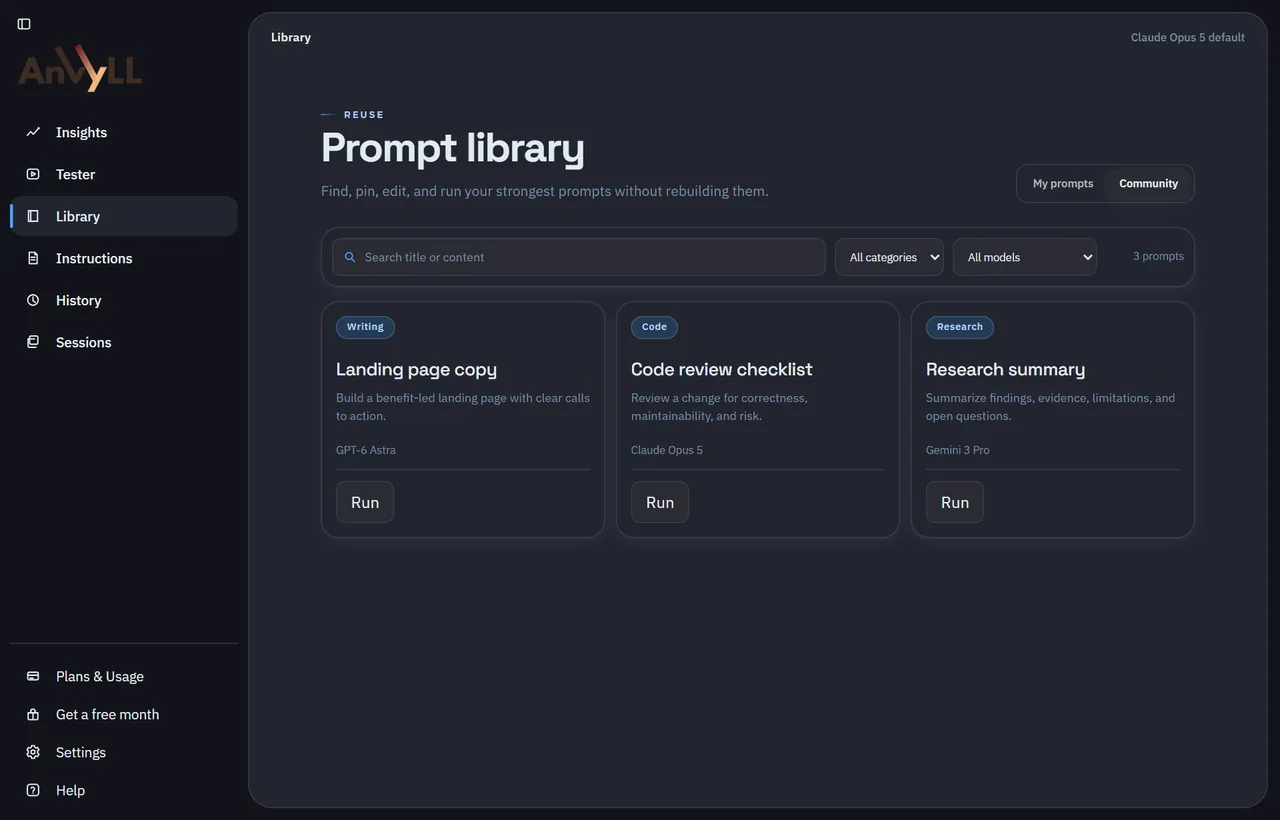
Deepest shop, bone on void.
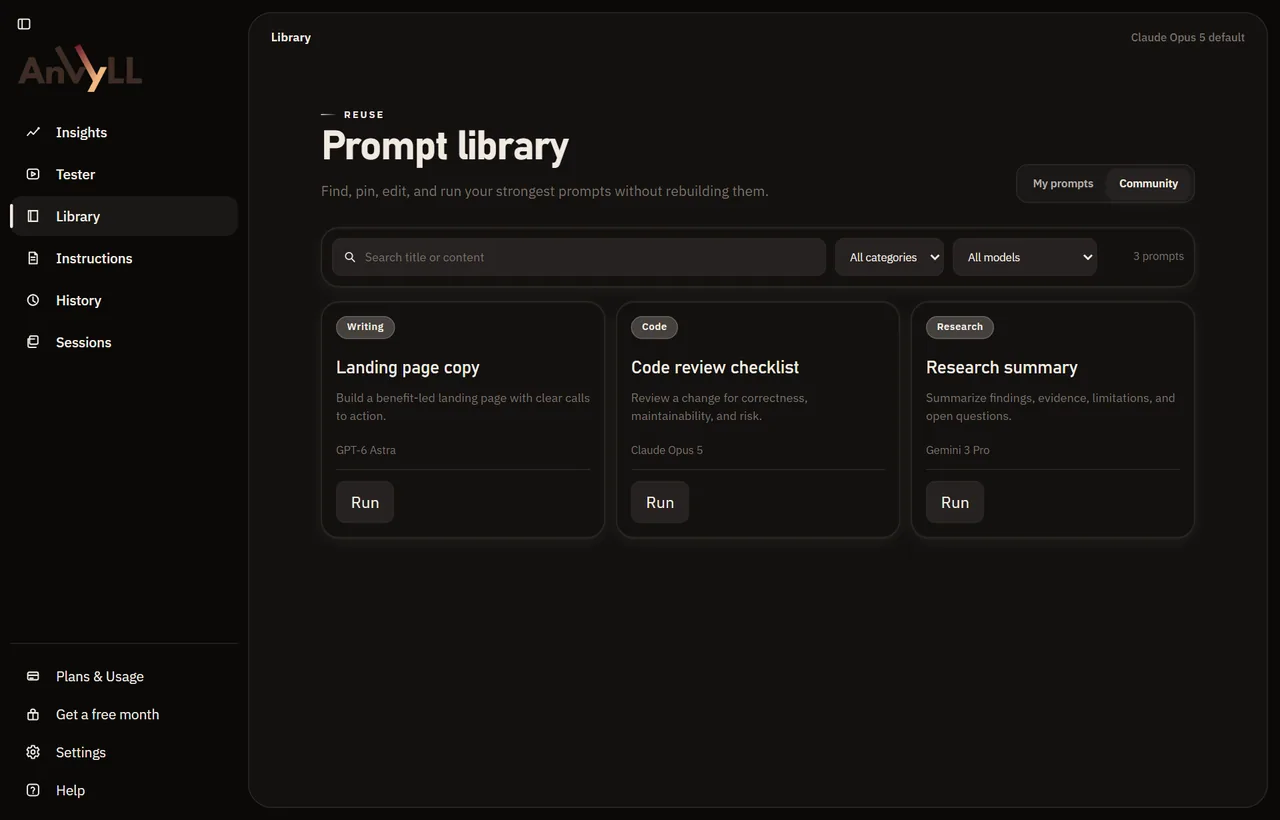
Wine-dark shop, sport crimson.
Cooled success on green steel.
White paper, black ink.
Where your prompt goes
Three separate things happen to three separate kinds of data. Here is each one.
Pricing
€0
A one-time grant of 1,000 credits.
No card required No card required. Installs on Windows 10 or later.
€13.99 / month
VAT inclusive. Cancel at period end from the app.
Plan is chosen in the app, after install Start now on any device. Install on your Windows PC later; your plan waits on your account.
Questions
Anvyll AI is the alternate name for Anvyll, a Windows prompt optimizer and tray app for Windows 10 and 11. You press Ctrl+Space while a text field is focused, the overlay opens over that app, and the draft already in the field is what gets rewritten. The result is applied back into the same field. The target you pick (Claude, GPT, Gemini, or another guide) chooses the documented prompting methodology for the rewrite. The rewrite itself always runs on one model (OpenAI) through the Anvyll service, whichever target you pick, and the target's guide decides the shape of the result. An account is required before you can refine. Prompts, sessions and project notes stay in a per-account vault on your machine. Pressing Generate is the step that sends the submitted prompt and any attached context to the Anvyll service, which returns the rewritten prompt. The free plan is a one-time grant of 1,000 credits. Unlimited is €13.99 per month after a 14-day trial. It is an overlay refiner, not a chat app, and it is not the supply-chain product Anvyl and not Anvil.
Anvyll refines the draft in the text field that has focus when you press the hotkey. It does not start a separate chat, and it does not invent a prompt from an empty screen unless the field itself was empty. The overlay captures that text, you choose a target model and a structure level, and Generate rewrites the draft into a clearer prompt shaped by that model's documented methodology. Apply writes the result back into the same field. If the field blocks insertion, the refined text stays on the clipboard so you can paste it. Session or project context is included only when you have imported it. The rewrite reorganises what you supplied. It is not a place to browse the web or to keep a running conversation with a model.
The target model selects whose prompting methodology gets applied, not which provider runs the rewrite. Choose Claude and the output is shaped as XML-tagged sections. Choose GPT-6 Astra and it is shaped as markdown with numbered steps. Gemini, Grok, Llama, Mistral and the other guides each have their own structure, taken from that vendor's published prompting notes. One rewrite model (OpenAI, through the Anvyll service) does the work for every target. The guide decides the shape of the output: headings, tags, where constraints sit, and how explicit the output contract is. You still need a connection, because Generate sends the prompt to the Anvyll service. Picking a target does not open that vendor's chat, and the result comes back to the field you were in. The structure level, from Cool through Max, changes how much of that methodology is applied.
You need an Anvyll account. Anvyll does not refine while you are signed out. You sign in from the tray icon after install. Refining runs through the Anvyll service, which holds the model connection. Anvyll registers Ctrl+Space on first launch, and you can reassign it in Settings. The free plan is a one-time grant of 1,000 credits. Unlimited is €13.99 per month and starts with a 14-day trial. Sign-in, plan and credit records are account data, kept apart from the prompt text. Prompts, sessions and projects stay in the local vault on your machine. The account is how the service knows which plan is allowed to call Generate. A trial started on the web waits on that account until you install. Billing for Unlimited is handled in Settings, apart from the vault that stores drafts.
No. Refining needs a connection, because the request is processed by the Anvyll service rather than on your machine. Opening the overlay, reading the focused field, and storing prompts in the local vault do not replace that step. When you press Generate, the submitted prompt and any context you attached are sent to the service, which calls the model and returns the result. Without a network, that call cannot finish, and Anvyll does not substitute a local rewrite. Apply and Copy still use the text already in the overlay if a result is there. The Windows-only capture path is separate from the network path: the hotkey can show the overlay, but a refine still waits on the service. Signing in also needs the network. A stored draft is not a substitute for that response.
Some fields block programmatic insertion. When that happens the refined text stays on your clipboard and you can paste it yourself. Copy is always available in the overlay footer.
Session context applies to what you are working on right now and is scoped to that session. Project context is standing detail that stays attached to a project across sessions. You choose the scope when you import context.
The free grant is a one-time allowance of 1,000 credits. Once it is spent, refining continues on the Unlimited plan at €13.99 per month, which starts with a 14-day trial.
Windows 10 or later. Anvyll relies on Windows-specific capture and insertion to read and write the field you are focused on, so there is no macOS or Linux build.
Bring Anvyll into your Windows workflow.
Windows 10 or later · 1,000 free credits · no card to start
CtrlSpace Capture Refine Apply